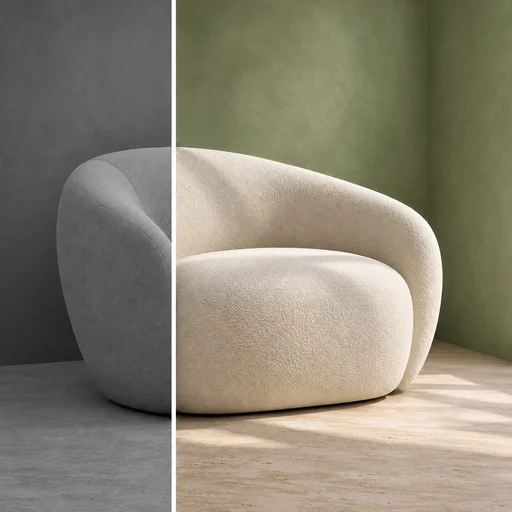
Remove and clean up Take the clutter out of the photo.

Scroll to redesign

AI concept footage. Results vary with your photo.

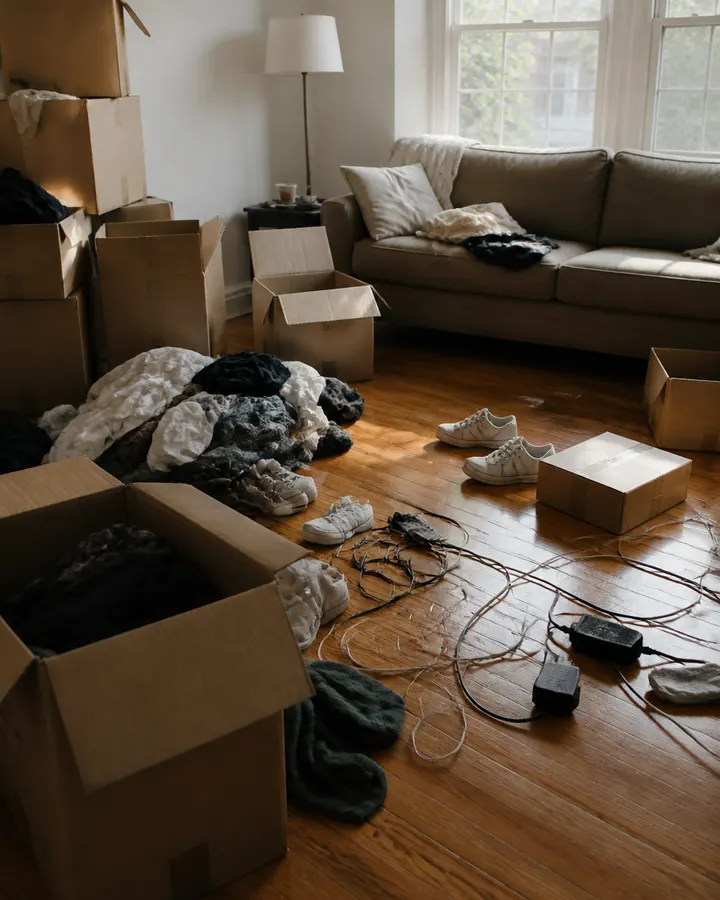
Remove clutter, cables or a single object See a cleaner room before you tidy it for real Useful for listing photos and home staging

Remove and clean up

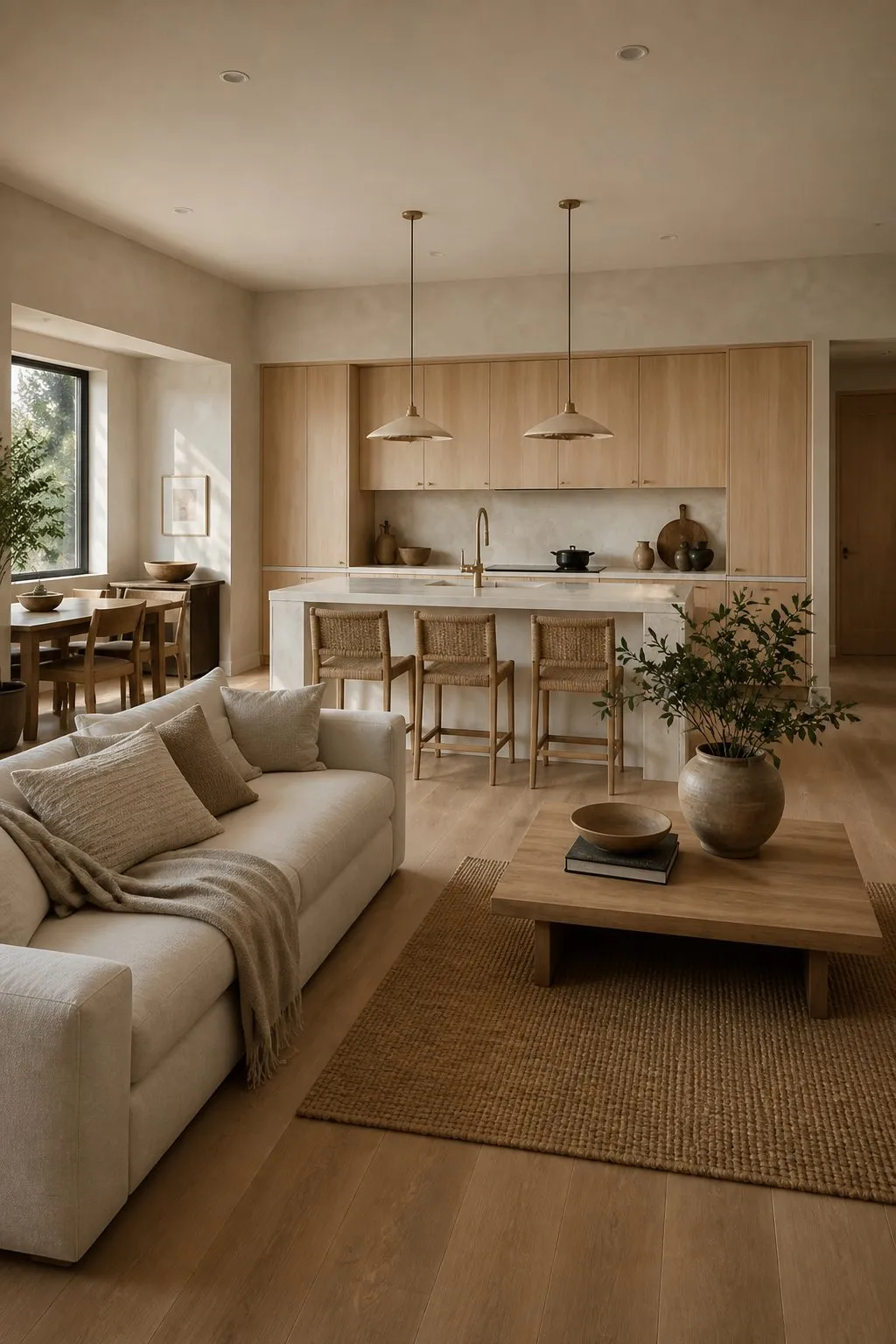
Remove clutter, cables or a single object from a room photo.

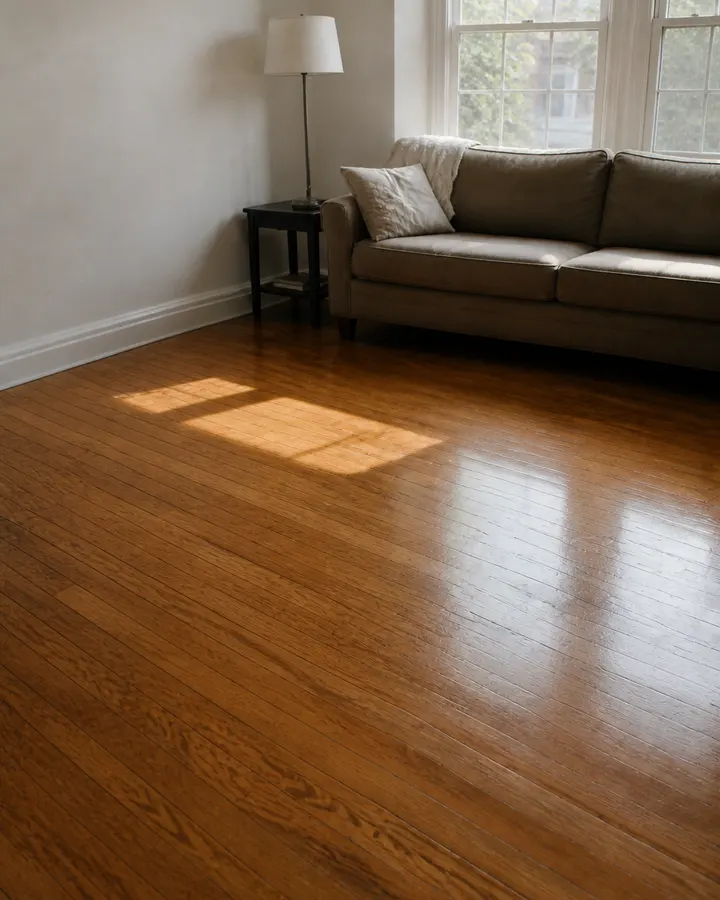
Before and after.

A cable, a pile of clutter or one object ruining a photo. Remove it and see a cleaner room.

Hover or drag across the room to peek at the other side.

Remove and clean up: Before Remove and clean up: After Before After

How does Remove and clean up work?

Three steps, from your own photo to the result.

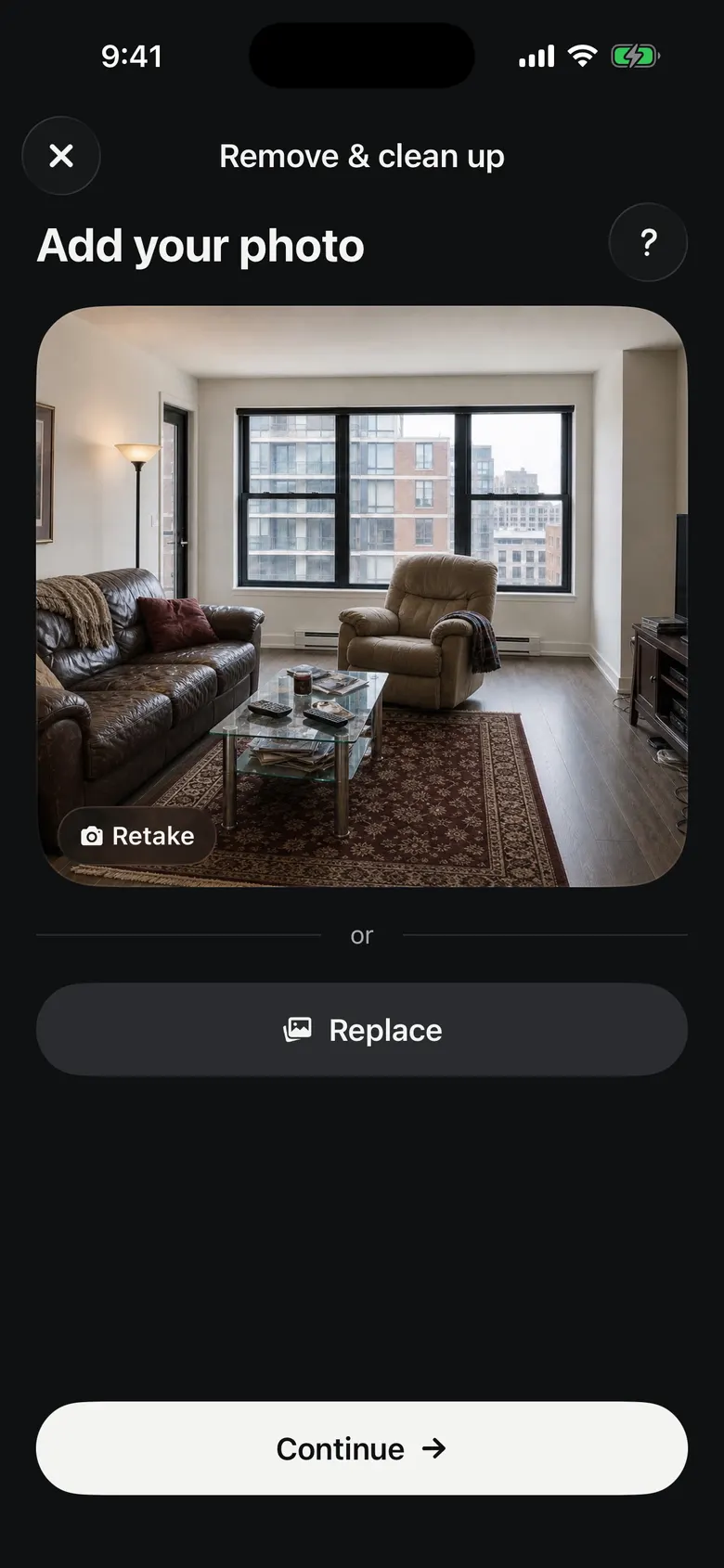
  1. 01

    Photograph the room

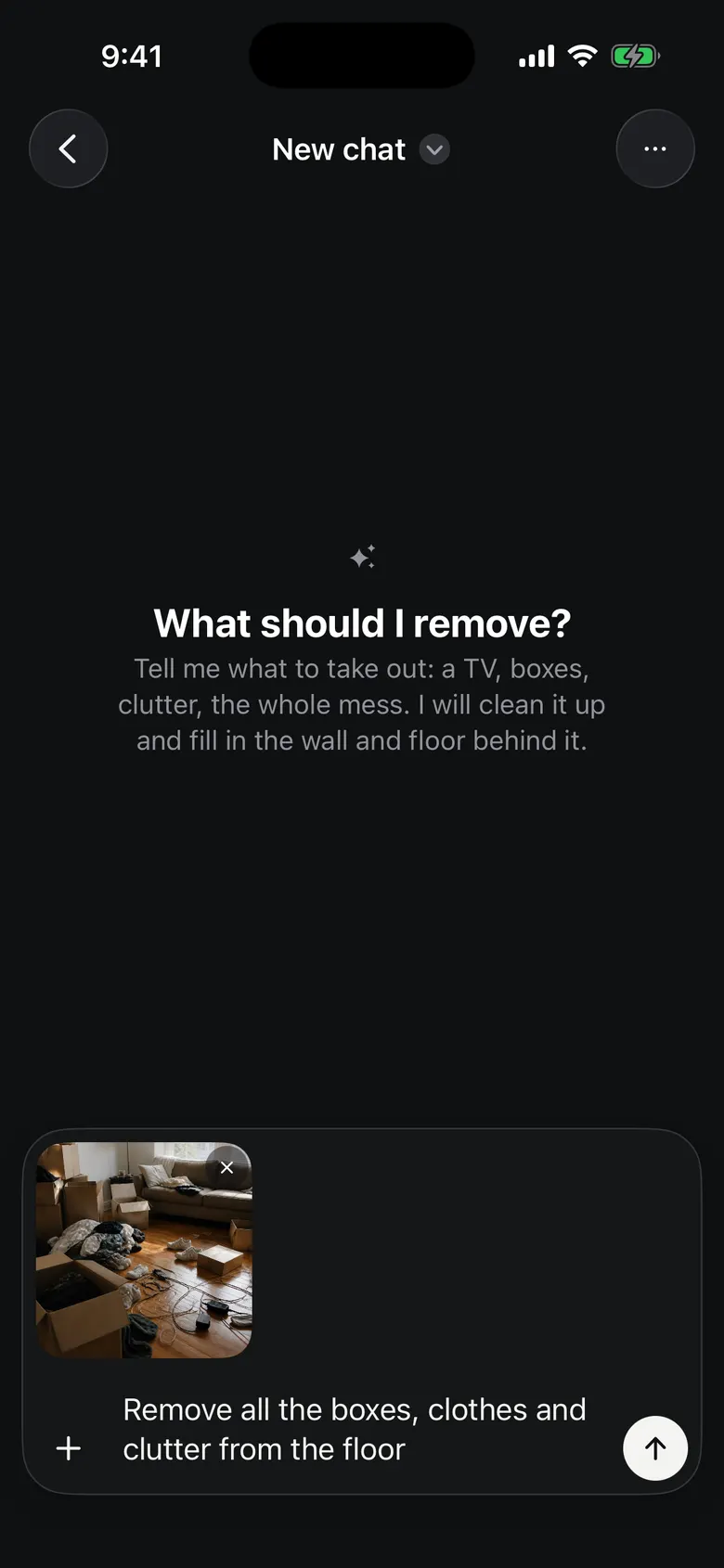
  2. 02

    Mark the clutter, cable or object

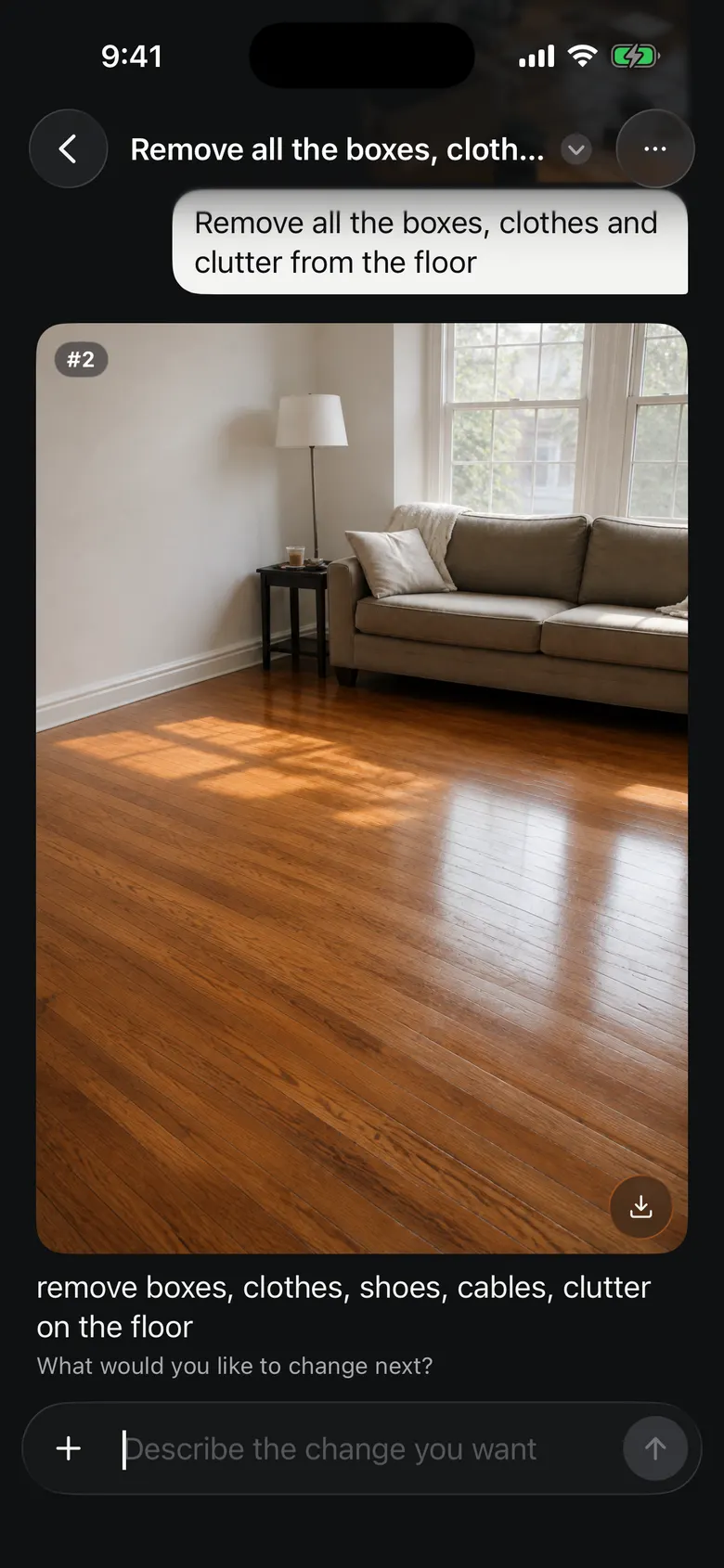
  3. 03

    Compare before and after

Photograph the room.

Mark the clutter, cable or object.

Compare before and after.

Screens are illustrative.

Remove and clean up in Revamp AI

What is Remove and clean up?

Remove Objects in Revamp AI takes clutter, cables or a single object out of a room photo and shows a cleaner room. Mark what you want gone and compare the result with the original. It is useful for seeing a tidy room before you tidy it, and for cleaner photos of a space.

Who is Remove and clean up for?

It suits people preparing listing photos or home staging, anyone who wants a clean image of a room, and anyone curious how a space looks without one distracting thing in it.

Tips for the best result

Photograph the room in good light and mark the object clearly, leaving a little space around it. For several objects, remove them one at a time and compare each result. Results vary with photo quality, and the tool changes the picture only, not your real room.

Every tool, in one app.

Revamp AI is a full design studio for the inside of your home, the outside and everything that grows. Start from a photo, pick a tool and keep going in the same chat.

Interior design

Redesign, plan and fix every room from a single photo.

  • Room redesign

    Photograph a room, pick one of more than 80 styles or describe your own, and get a redesign built to keep your walls, windows and layout.

  • Room Doctor

    Get an evidence-based diagnosis of what is holding a room back, where it shows, and a prioritised plan of fixes.

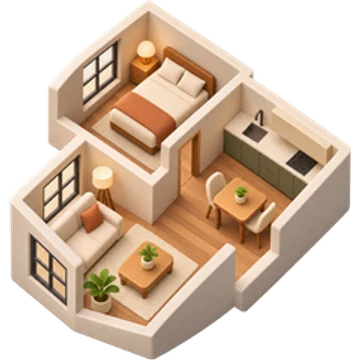
  • Furniture layout

    See a new arrangement of your room before you lift a single sofa.

  • Floor design

    Try hardwood, tile, stone or carpet on your real floor and compare them side by side.

  • Curtains and shades

    See new curtains, sheers or Roman shades on your own windows.

  • Kitchen cabinet design

    Restyle your kitchen cabinet doors, colour and hardware before you commit to a renovation.

  • Paint surfaces

    Test wall colours and finishes on your own photo so you can choose a paint with confidence.

  • Replace objects

    Swap one piece, like a sofa, lamp or table, for another and keep the rest of the room as it is.

  • Remove and clean up

    Take clutter, cables or a single object out of the photo and see a cleaner room.

  • Shopping and prices

    See the pieces in a redesign with estimated price ranges and where to shop for them.

  • Whole Home

    Plan every room in one place so the whole house works as a single design.

Exterior design

Reimagine your house from the street and your garden from the back door.

  • Exterior redesign

    Reimagine your home's facade with new colours, a new front door and fresh trim.

  • Garden design

    Redesign a garden, patio, terrace or balcony from a photo of the space.

Plants and greenery

Choose, identify and look after the plants in your home and garden.

  • Plant identification

    Point your camera at any plant to learn its name.

  • Plant health diagnosis

    Find out what is wrong with a struggling plant and what to do about it.

  • Plants for my room

    Photograph a room and see which plants suit it, where each would go and how much light it needs.

  • Plant care guides

    Look up care guides and a regional directory of plants that grow well where you live.

New tools arrive with every update. See every tool on its own page.

Questions about this tool

What is Remove and clean up?

Remove clutter, cables or a single object from a room photo. A cable, a pile of clutter or one object ruining a photo. Remove it and see a cleaner room.

How does Remove and clean up work?

1. Photograph the room 2. Mark the clutter, cable or object 3. Compare before and after

Is Revamp AI free?

New subscribers may be offered a free trial, depending on store eligibility. After that, one subscription keeps every design and tool available, so there is nothing to count or top up.

What happens to my photos?

They are processed to create your design. We do not use your photos to train AI models. You can delete your account and data in the app.

Try it on the room you are looking at right now.

On iPhone and Android, with a free trial for eligible new subscribers.